yellowteak / magento2-change-customer-password

Magento 2 module that makes it possible to change the customer password from the admin.
Package info
github.com/yellowteak/magento2-change-customer-password
Type:magento2-module
pkg:composer/yellowteak/magento2-change-customer-password
Requires
- php: ^8.2
- magento/framework: ^103.0
- magento/module-backend: *
- magento/module-config: *
- magento/module-customer: *
- magento/module-ui: *
- magento/module-user: *
Requires (Dev)
- magento/magento-coding-standard: *
- phpunit/phpunit: ^9.6 || ^10.5
Suggests
None
Provides
None
Conflicts
None
Replaces
None
This package is auto-updated.
Last update: 2026-11-16 23:19:30 UTC
README
Magento 2 module that makes it possible to change the customer password from the admin. This can be useful for customer support purposes or when a customer has forgotten their password and needs assistance.
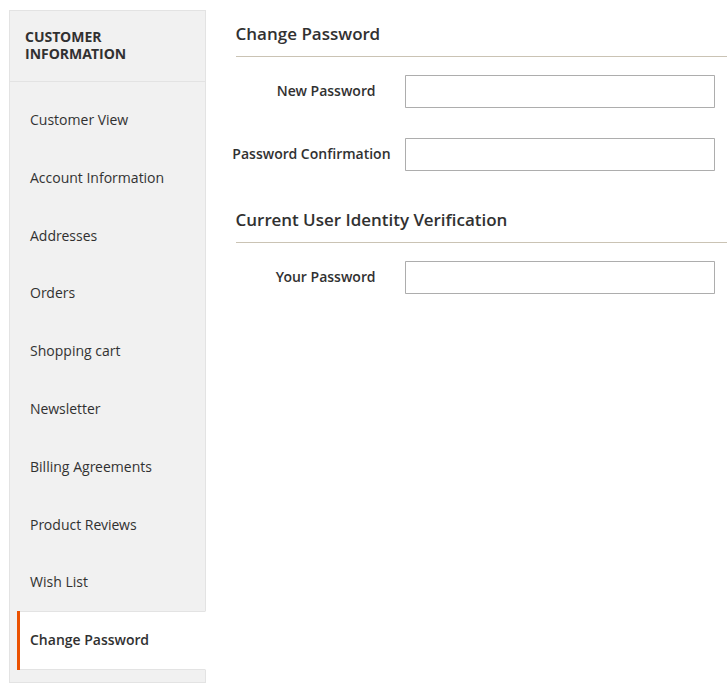
This module adds a new tab to the customer edit page in the Magento admin panel, allowing administrators to change the customer's password directly from there.
Installation details
- Run
composer require yellowteak/magento2-change-customer-password - Run
php bin/magento module:enable YellowTeak_ChangeCustomerPassword - Run
php bin/magento setup:upgrade - In production mode, also run
php bin/magento setup:di:compileandphp bin/magento setup:static-content:deploy
Configuration
Before the new tab will be visible in the customer edit page, you need to enable the module in the configuration settings. To do this, follow these steps:
- Log in to the Magento admin panel.
- Navigate to
Stores > Configuration > YellowTeak > Change Customer Password. - Set
EnabledtoYes. - Click
Save Config. - Flush the cache by navigating to
System > Cache Managementand clickingFlush Magento Cache.
Permissions
Changing a password requires its own permission. Administrators with access to all resources have it automatically. For roles with custom resource access, follow these steps:
- Navigate to
System > Permissions > User Rolesand open the role. - On the
Role Resourcestab, selectCustomers > All Customers > Actions > Change password. - Click
Save Role.
The Change Password tab is hidden for administrators without this permission.
Usage
Once the module is enabled, you can change a customer's password by following these steps:
- Log in to the Magento admin panel.
- Navigate to
Customers > All Customers. - Click on the customer whose password you want to change. The tab is not available while creating a new customer.
- Click on the
Change Passwordtab. - Enter the new password in the
New PasswordandPassword Confirmationfield. The password has to meet the customer password rules configured underStores > Configuration > Customers > Customer Configuration > Password Options. - For security reasons, you will also need to enter your own admin password in the
Your Passwordfield to confirm the change. - Click the
Change Passwordbutton in the tab. The password is changed immediately, without saving the customer. Other unsaved changes on the customer page are left untouched.
After a successful change, the customer is signed out of all active sessions. If the customer account was locked because of failed login attempts, the lock is lifted. Entering a wrong admin password counts as a failed login attempt and can lock your admin account, the same as on the login page.