
orangecat / module-mago-ai-image

Mago Assistant add-on: AI product images from a gallery image and a prompt, with pluggable providers (Google Gemini, OpenAI).
Package info
github.com/olivertar/m2_mago_ai_image
Type:magento2-module
pkg:composer/orangecat/module-mago-ai-image
Requires
- php: ~8.2.0||~8.3.0||~8.4.0||~8.5.0
- ext-gd: *
- mage-os/module-ai-base: ^1.1
- magento/framework: ^103.0.8 || ^104.0
- magento/module-authorization: ^100.4.8 || ^101.0
- magento/module-backend: ^102.0.8 || ^103.0
- magento/module-catalog: ^104.0.8 || ^105.0
- magento/module-config: ^101.2.8 || ^102.0
- magento/module-cron: ^100.4.8 || ^101.0
- magento/module-store: ^101.1.8 || ^102.0
- magento/module-user: ^101.2.8 || ^102.0
- mago-assistant/magento2-mago: ^1.1
- symfony/ai-gemini-platform: ^0.15
Requires (Dev)
- bitexpert/phpstan-magento: ^0.44
- magento/magento-coding-standard: ^41
- phpstan/extension-installer: ^1.4
- phpstan/phpstan: ^2.3
- phpstan/phpstan-phpunit: ^2.1
- phpunit/phpunit: ^10.5 || ^11.5 || ^12.5
Suggests
None
Provides
None
Conflicts
None
Replaces
None
README
Mago Assistant add-on that creates product images with AI from one of the product's gallery images and a prompt ("a person walking through the city wearing this jacket"). Images are created as previews and only reach the product gallery when someone attaches them.
One module holds everything: the generation core, the Google Gemini and OpenAI providers, the
dummy provider (developer mode only) and the Mago tools. The chat model (e.g. Kimi) only
orchestrates; the image is made by the image provider of the selected AI service.
Compatibility
| Supported | |
|---|---|
| Magento Open Source | 2.4.8 and later |
| Mage-OS | Releases built on Magento 2.4.8 or later |
| PHP | 8.2 to 8.5 |
| Mago | mago-assistant/magento2-mago 1.1 or later |
| Mage-OS AI Base | mage-os/module-ai-base 1.1 or later |
| Storefront | Admin only. Attached images are ordinary gallery images, so they show in any theme (Luma, Hyvä) and headless frontend. |
CI tests the currently supported Mage-OS versions. Adobe Commerce is not tested.
Install
composer require orangecat/module-mago-ai-image
bin/magento module:enable Orangecat_MagoAiImage
bin/magento setup:upgrade
Getting started
-
Add the API key once, in Mage-OS AI Base:
Stores > Configuration > Mage-OS > AI Configuration, add a Google Gemini or OpenAI service with its API key and save. The key never goes into this module's settings.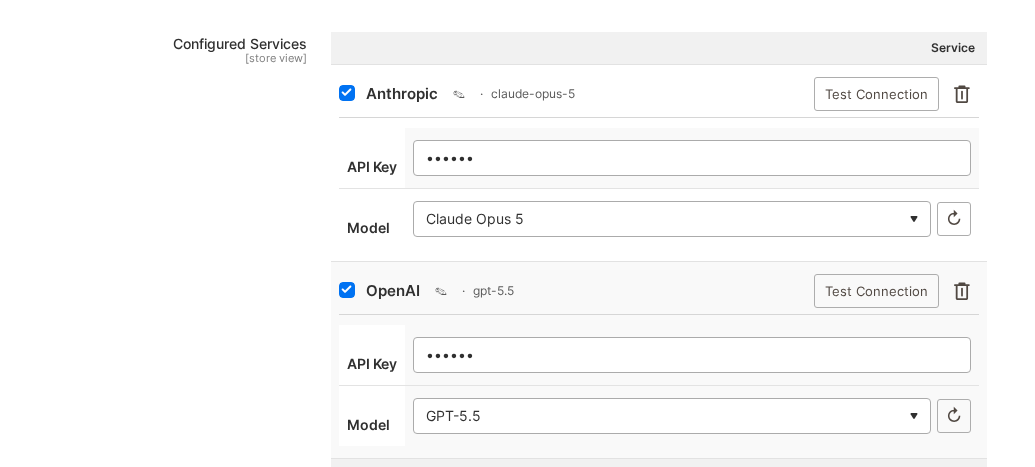
-
Open
Stores > Configuration > Mago Assistant > Image Generation, set Enabled to Yes, pick that service under AI Service and save.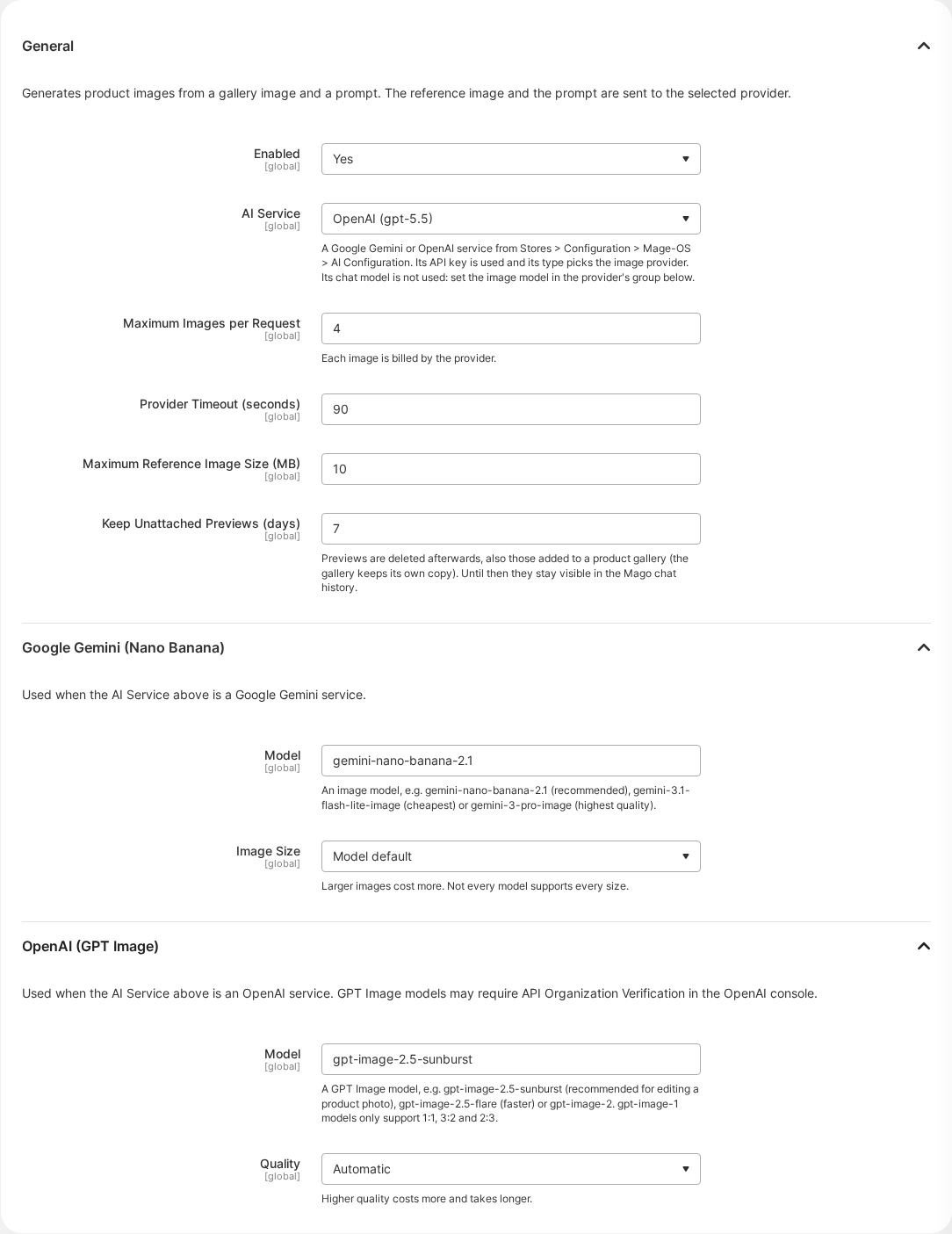
-
Make sure the admin role has
Catalog > Inventory > Products > Image Generation(with Generate Previews and Add to Product Gallery) and access to products, and that the image tools are allowed for the user underStores > Admin Assistant > Skills & Permissions. -
Open the Mago chat panel and ask, for example: Generate an image for WJ12 of a person walking through the city wearing this jacket, 3:4 format. Confirm the card: every image is billed by the provider. The previews appear in the chat.
-
Ask Add the first one as the base image. After confirming, the image is in the product's gallery under
Catalog > Products > WJ12 > Images and Videos.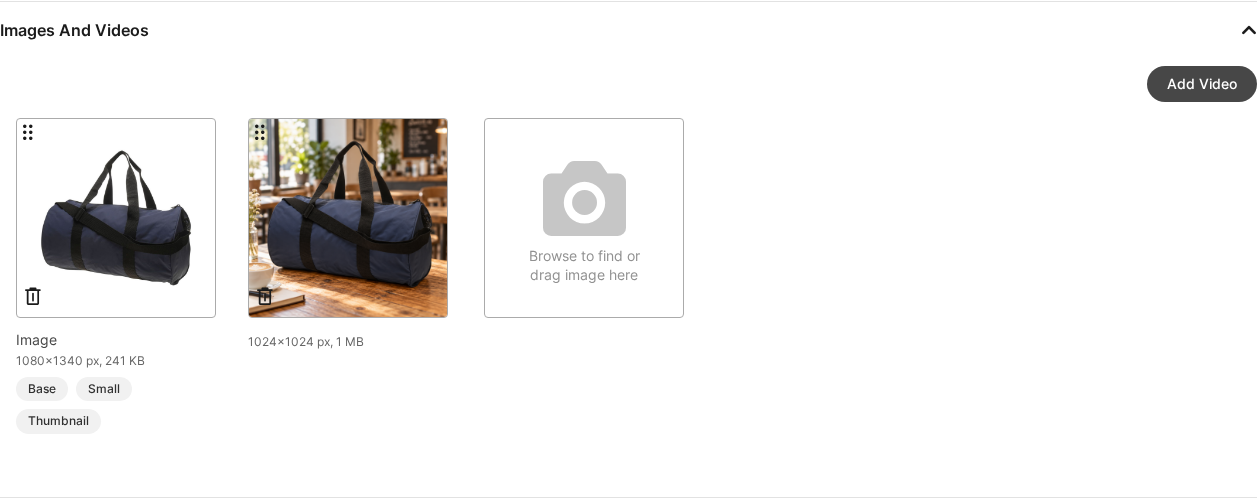


bin/magento mago:ai-image:providers shows the selected service, which provider serves it and
whether generation can run.
Configuration
All settings are under Stores > Configuration > Mago Assistant > Image Generation
(mago_ai_image/*) and are default scope only: the Mago tools, the cleanup cron and the CLI
run without a store, so a website value would never be read.
General
| Setting | Default | What it does |
|---|---|---|
| Enabled | No | Shows the image tools to Mago. While No, Mago doesn't offer them and the CLI refuses to generate. |
| AI Service | (none) | A Google Gemini or OpenAI service from Mage-OS AI Configuration. Its API key is used and its type picks the provider: a Google row uses Gemini, an OpenAI row uses OpenAI. Its chat model is not used. "OpenAI compatible" rows (such as Kimi) are not offered: they have no image API. |
| Maximum Images per Request | 4 | Upper limit for one generation (1 to 10). The provider's own limit applies too. Each image is billed. |
| Provider Timeout (seconds) | 90 | Per call to the provider (10 to 600). Gemini makes one call per image, so a request for several images can take several times this long. |
| Maximum Reference Image Size (MB) | 10 | A larger gallery image is refused as reference instead of being sent. |
| Keep Unattached Previews (days) | 7 | After this, the daily cleanup discards previews nobody attached and removes the preview copy of attached ones (the gallery keeps its own copy). Until then they stay visible in the Mago chat history. |
Google Gemini (Nano Banana)
Used when the AI Service is a Google Gemini service.
| Setting | Default | What it does |
|---|---|---|
| Model | gemini-nano-banana-2.1 |
The image model. gemini-3.1-flash-lite-image is the cheapest, gemini-3-pro-image the highest quality. Any image model name works, including ones newer than this module. |
| Image Size | Model default | 1K, 2K or 4K. Larger images cost more; not every model supports every size. |
mago_ai_image/gemini/base_url (https://generativelanguage.googleapis.com, without the API
version) can be changed in config.xml or with bin/magento config:set, for example to route
through a proxy. It must be an http or https URL.
OpenAI (GPT Image)
Used when the AI Service is an OpenAI service.
| Setting | Default | What it does |
|---|---|---|
| Model | gpt-image-2.5-sunburst |
The GPT Image model. gpt-image-2.5-flare is faster; gpt-image-1 models only support 1:1, 3:2 and 2:3. GPT Image models may require API Organization Verification in the OpenAI console. |
| Quality | Model default | Low, medium or high. Higher quality costs more and takes longer. |
The reference image and the prompt are sent to the provider of the selected service.
Providers
Gemini and OpenAI go through the Symfony AI bridges (symfony/ai-gemini-platform,
symfony/ai-open-ai-platform, ^0.15 like MageOS_AiBase 1.1), built per request by
Model\Platform\PlatformFactory with the configured timeout and no redirects. The model is built
from the configured name instead of the bridge catalog, so newer models work without a bridge
release. Model\Platform\ResponseReader reads the HTTP status and body before the bridge
converts the result: the bridges drop the provider's error details (moderation_blocked,
promptFeedback), and the usage is read from the body.
- Gemini —
POST {base_url}/v1beta/models/{model}:generateContentwith the key inx-goog-api-key; one call per image; aspect ratios 1:1, 2:3, 3:2, 3:4, 4:3, 4:5, 5:4, 9:16, 16:9, 21:9. - OpenAI —
POST https://api.openai.com/v1/images/edits(multipart, oneimage) with the key inAuthorization: Bearer; the key must start withsk-; one call returnsnimages; aspect ratios map to sizes near 1.5 MP (multiples of 16);gpt-image-1*models only accept 1:1, 3:2 and 2:3. GPT Image models may require API Organization Verification (a 403 is reported as such). - Dummy — tints the reference image with GD, no network; developer mode only.
Errors are mapped to ProviderUnavailableException (key, access, unknown model),
ContentRejectedException (safety/moderation), ProviderTimeoutException and
ProviderException (quota, other).
Mago tools
| Tool | Access | Magento ACL | Does |
|---|---|---|---|
mago_product_image_list |
read | Magento_Catalog::products |
Gallery images of a SKU, pending previews, supported aspect ratios and image count |
mago_product_image_generate |
write | Orangecat_MagoAiImage::generate |
Generates previews from a gallery image and a prompt; confirmed by the admin, since every image is billed |
mago_product_image_attach |
write | Orangecat_MagoAiImage::attach |
Adds a preview to the product gallery, with roles and label |
The tools are hidden while generation is disabled or no usable AI service is selected. A call that cannot succeed (no product permission, unknown SKU, empty prompt, preview already attached, unknown role) is refused before the confirmation card. Previews are served from this store's media URL, so the chat panel shows them inline (it only loads images from its own origin).
Example questions:
- "Generate an image for WJ12 of a person walking through the city wearing this jacket, 3:4 format"
- "Use the back photo of WJ12 as reference and make two images in a studio with a white background"
- "Add the first one as the base image with the label 'City walk'"
Every returned field is PiiClass::PUBLIC (no personal data); admin_url is tokenised by Mago.
bin/magento mago:tool:verify mago_product_image_list '{"sku":"WJ12"}'
CLI and API
bin/magento mago:ai-image:providers
bin/magento mago:ai-image:generate --sku=WJ12 --prompt="A person walking through the city wearing this jacket" \
    [--provider=gemini] [--media-entry=<gallery id>] [--count=2] [--aspect-ratio=3:4] \
    [--attach --roles=image,thumbnail --label="City"]
From code: Orangecat\MagoAiImage\Api\ImageGeneratorInterface::generateForProduct() returns
previews (GenerationInterface), GenerationManagementInterface::attach() adds one to the gallery
and discard() drops it. Previews are stored in pub/media/mago_ai_image/preview/. The
mago_ai_image_cleanup_previews cron job removes them after the retention period: unattached
ones are discarded, attached ones only lose the preview file (the gallery keeps its own copy, and
file is set to empty). Until then the Mago chat history keeps showing them. Generations are
kept in mago_ai_image_generation, with the admin who requested them.
ACL: Orangecat_MagoAiImage::generate, Orangecat_MagoAiImage::attach (under Catalog > Inventory >
Products) and Orangecat_MagoAiImage::config. The generate and attach tools also require
Magento_Catalog::products at run time, so a role cannot change galleries of products it cannot edit.
Adding a provider from another module
- Implement
Orangecat\MagoAiImage\Api\ImageProviderInterfaceand add it to theprovidersargument ofOrangecat\MagoAiImage\Model\ProviderPoolindi.xml. - Return the MageOS_AiBase codes the provider serves from
getAiBaseServiceCodes(), and add them to theserviceCodesargument of theOrangecat\MagoAiImage\Model\Config\Source\ImageAiServicevirtual type in yourdi.xml, so the AI Service dropdown offers those rows. - Add a group with the provider code to the
mago_ai_imagesection inetc/adminhtml/system.xml, like thegeminigroup:modeland any provider-specific options. No key fields: the key comes from the selected MageOS_AiBase row. - Read settings only through
ProviderConfigInterface(getApiKey(),getModel(),getValue()). Never log or return the key. - Use
Model\Config::getTimeout()as the HTTP timeout and throw the exceptions above with messages fit for an administrator. For a provider with a Symfony AI bridge, followModel\Provider\Gemini: a platform from the bridge factory, the model built from its name, andModel\Platform\ResponseReaderto check the response before converting it.
Troubleshooting
- Mago doesn't offer to generate images. Run
bin/magento mago:ai-image:providers: it says whether the module is enabled, which AI service is selected and whether its provider can run. Also check the role and the user's skill permissions from Getting started. - "No AI service is selected" or "is not a … service". Pick a Google Gemini or OpenAI row
under AI Service. A row that was deleted or disabled in AI Configuration has to be picked
again. After changing settings with
config:set, flush the config cache. - The chat shows text where the preview should be. The chat panel only loads images from the admin's own host. Previews are served from the store's media URL, so a CDN or separate media domain, or a custom admin domain, keeps them from showing. The preview still exists and can be attached.
- Requests time out. Raise Provider Timeout, ask for fewer images at once, or pick a faster model. PHP-FPM, the web server and any proxy in front of the admin need a timeout at least as long as the whole request.
- Old previews pile up in
pub/media/mago_ai_image/preview. The cleanup runs daily from Magento cron (mago_ai_image_cleanup_previews); check that cron is running.
Privacy
The reference image and the prompt are sent to the configured provider (Google, OpenAI). The admin
who generated each preview is stored in mago_ai_image_generation.admin_user_id.
Links
- CHANGELOG
- Security policy
- License: MIT, see LICENSE