
muckiware / facility-plugin

Muckiware Facility Plugin for Shopware 6
Package info
github.com/muckiware/MuckiFacilityPlugin
Type:shopware-platform-plugin
pkg:composer/muckiware/facility-plugin
Requires
- php: ~8.2.0 || ~8.3.0 || ~8.4.0
- ext-sodium: *
- dragonmantank/cron-expression: ^3.6
- gabrielelana/byte-units: ^0.5.0
- muckiware/restic: ^1.4
- shopware/core: ~6.6.10.1 || ~6.7.0
- spatie/db-dumper: ^3.7
Requires (Dev)
Suggests
None
Provides
None
Conflicts
None
Replaces
None
- dev-main
- v0.8.0
- v0.7.0
- v0.6.1
- v0.6.0
- v0.5.0
- dev-feat/folder-browser
- dev-feat/schedule-management
- dev-feat/dashboard
- dev-feat/repository-password-encryption
- dev-feat/repository-status-tab
- dev-20-added-messagebus-dispatch-integration-for-backup-run
- dev-17-change-size-value-of-snapshots-as-metric-type
- dev-11-snapshots-remove-via-admin-snapshot-list
- dev-9-hostname-for-restic-snapshots
- dev-12-remove-repository-password-of-api-content
- dev-8-webp-image-converter
- dev-dev
- dev-feature-cli-command-backup
This package is auto-updated.
Last update: 2026-10-26 16:37:13 UTC
README
Muckiware Facility Plugin for Shopware 6 Web shops for to maintenance and backup of the database.
- The plugin provides a backup functionality for the database.
- Creates a backup of folders and files by an individual configuration into repository database. The plugin use the restic backup tool for to create the backups. https://restic.readthedocs.io/
- The backups will be encrypted by a password.
- Cleanups tables like cart, if the database table grow up in too large.
Requirements
- Shopware 6.6.x or 6.7.x
- PHP 8.2.x or greater
- restic 0.15.x or greater
Installation
composer require muckiware/facility-plugin
bin/console plugin:install -a MuckiFacilityPlugin
Repository password secret
Repository passwords created through the administration are stored encrypted. The key is derived
from the environment variable MUWA_FACILITY_SECRET, which you have to add to your .env:
echo "MUWA_FACILITY_SECRET=$(openssl rand -hex 32)" >> .env
Keep this value with your disaster recovery notes. Without it, no encrypted repository password can be read back — not even from a restored database. Restoring a shop onto a fresh host with a newly generated secret means the repository passwords are lost, and with them access to the backups.
If you would rather keep no secret in the database at all, see Password sources.
General Configuration
Plugin configuration under:
Settings -> Extensions -> My extensions -> MuckiFacilityPlugin -> Configure
| Option | Desc |
|---|---|
| Global settings - Active | Turn plugin on/off global |
| Global backup settings -> Active database backup | Turn backup database on/off global, for cli command bin/console muckiware:db:dump <Type of backup> |
| Global backup settings -> Compress database backup file | Turn on/off compressen for db dump, for cli command bin/console muckiware:db:dump <Type of backup> |
| Global backup settings -> Use own restic path | Turn on/off own restic |
| Global backup settings -> Own path to binary of restic | Enter the absolut path to binary file of restic. Example input: /var/www/html/bin/restic_0.17.3_linux_386 |
| Dashboard -> Show backup status on the dashboard | Shows a card with the latest repository status (date, repository size, number of snapshots, check status) of every active backup repository on the administration dashboard. Off by default. Requires the muwa_backup_repository.viewer permission and system_config:read. |
Respoitory Configuration
First you will need a repository configuration for the backup. The repository configuration is the base for the backup process. The repository configuration contains the backup source and the backup target. The backup source is the path to the folder or file which should be backuped. The backup target is the path to the repository where the backup data should be restored.
Settings -> Extensions -> Backup Repositories -> Add Repository
for to create a new repository configuration.
General Configuration Setup
| Option | Desc |
|---|---|
| Active | Turn repository on/off |
| Technical Name | Free choose as a technical name, is just for better to organize the backup configurations |
| Database dump type | Choose the typ of database dump backup. As separate dump files for each table, only one dump file for the complete database, or none database dump. |
| Repository Path | Absolute path to the backup repository folder. Note that this path cannot be changed after creation! |
| Hostname | Client hostname for the backup snapshots, default hostname is muwa-facility-client |
| Repository Password | The backup repository will be encryped by a password. Remembering this password is very important! If you lose it, you won’t be able to get access to the data stored in the repository outside of the shop functionality. Note that this password cannot be changed after creation! |
| Restore Path | Enter here the absolute path for the target of the restored data. |
Backup Paths
Use the Add backup path-button for to define the files and folders which should be backup. You can choose a complete folder, or a single file.

You can define for each path item a compress option. If the compress option is active, the backup data will be compressed by gzip. For folders which containing mainly compressed image files, additional compression during backup would make less sense.
Commands before and after a backup
A repository can run an optional command before and after a backup. Select Batch / shell script
to execute a .sh file with /bin/bash. The script can either be selected from the server or
uploaded in the administration. Uploaded scripts are stored in
files/private/mucki-facility/batch/; uploading the same filename again overwrites the existing
file. After an upload, the absolute script path is written to the Shell script field
automatically.
Arguments belong in the separate Arguments field, not behind the script path. For example:
| Field | Example |
|---|---|
| Shell script | /var/www/html/files/private/mucki-facility/batch/cron_before.sh |
| Arguments | /var/www/html --mode "full backup" |
The script receives these values as normal positional arguments ($1, $2, $3, ...). Argument
parsing follows these rules:
- Spaces, tabs and line breaks separate arguments.
- Wrap a value containing whitespace in single or double quotes, for example
"value with spaces"or'value with spaces'. - Outside single quotes, a backslash escapes the following character, for example
value\ with\ spaces. - Unclosed quotes and a trailing backslash are rejected.
- A null byte (
\0) cannot be passed as a process argument. - Characters such as
/ : . _ - = @ # % , ; & | $ ( )are allowed.
Arguments are passed directly to the process without invoking a shell. Shell syntax is therefore
not evaluated: values such as ;, &&, $HOME, $(command), * and ~ are passed literally.
This prevents an argument from starting an additional shell command. If expansion is required, the
shell script must implement it explicitly.
The administration field has no explicit character limit and the value is stored as LONGTEXT.
The operating system still limits the combined size of process arguments and environment variables
(ARG_MAX), so the field should be used for command parameters rather than large payloads.
Delete of snapshots
You can remove old snapshots of a repository with the command.
bin/console muckiware:backup:snapshots <backupRepositoryId> --remove <snapshotIds>
The snapshot ids are passed as comma separated list to the --remove option, for example
--remove 8888ec40,79766175.
This setup defines the daily, weekly, month or yearly values for this remove process. More details about the keep-parameters you can find in the restic documentation https://restic.readthedocs.io/en/latest/060_forget.html#removing-snapshots-according-to-a-policy
Initial Backup
Finally, click on the Create new Repository-button, for to create a new backup repository. This action creates then a configuration item in the shop database. And it creates the backup repository folder which is defined in the Repository Path field.
like this:

Create Backup
cli
You can create a backup by the command line interface with the following command:
bin/console muckiware:backup:create <backupRepositoryId>
Administration panel
You can also create a backup in the administration panel.
- Go into the list of backup configurations under Settings -> Extensions -> Backup Repositories
- Select the backup repository
- Click on the Start backup-button
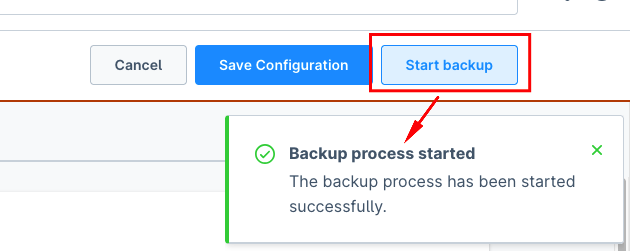

This action does not start the backup process immediately, it will be started as a background process. After a short while, you can see under the checks-tab the status of the backup checks, as well as the snapshots of each database and path item in the Snapshots-tab
At the end of every backup run, the repository statistics (total size, total file count, snapshots count, file system size) are collected and stored. You can see the latest values, plus a history of the last 10 collections, in the Repository Status-tab.
Scheduled backups
Each backup repository can have its own automatic backup schedule. Open the repository in the administration and select the Schedule-tab. The following options and runtime information are available:
| Option / value | Description |
|---|---|
| Active | Enables or disables automatic backups for this repository. |
| Cron expression | Defines when the backup is executed, for example 0 2 * * * for every day at 02:00. |
| Timezone (IANA) | Timezone used to evaluate the cron expression, for example Europe/Berlin or UTC. Daylight-saving time is taken into account. |
| Status | Current state of the schedule: inactive, scheduled, queued, running, success, failed or skipped. |
| Last execution | Time of the latest completed execution. |
| Next execution | Time at which the next backup is due. |
| Last error | Error message from the latest failed or skipped execution. |
Cron expressions and timezones are validated when the schedule is saved. Runtime timestamps are
stored in UTC. If a backup is already running, another backup is not started; the scheduled run is
marked as skipped instead.
The scheduler uses Shopware's Scheduled Task and Message Queue systems. Both runners must therefore be active, for example as continuously running services:
bin/console scheduled-task:run
bin/console messenger:consume async low_priority --time-limit=60
The task mucki_facility.dispatch_backup_schedules checks every 60 seconds for due schedules. Due
backups are queued and executed asynchronously, so the configured time can differ from the actual
start time by the polling and queue processing delay.
Command Line Interface
| Command | Desc |
|---|---|
bin/console muckiware:backup:check <backupRepositoryId> |
Checks a backup repository |
bin/console muckiware:backup:create <backupRepositoryId> |
Creates a new backup by backup repository configuration |
bin/console muckiware:backup:forget <backupRepositoryId> |
Removes snapshots of a backup repository by forget parameters |
bin/console muckiware:backup:snapshots <backupRepositoryId> |
Gets a list of snapshots in a backup repository id |
bin/console muckiware:repository:stats <backupRepositoryId> |
Collects and persists the repository status (total size, file count, snapshots count, file system size) |
bin/console muckiware:backup:restore <backupRepositoryId> <snapshotId> |
Restore data by backup repository id and snapshot id |
bin/console muckiware:db:dump <Type of backup> |
Creates just a database dump by global plugin setups |
bin/console muckiware:backup:encrypt-passwords [--dry-run] |
Encrypts repository passwords that are still stored as plain text |
bin/console muckiware:backup:password-source <backupRepositoryId> <source> <value> |
Sets the password source of a repository (encrypted, env or file) |
Password sources
Every repository records where its password comes from. The column repository_password is read
according to that source:
| Source | Content of the column | Secret in the database |
|---|---|---|
encrypted |
ciphertext, prefix v1: |
yes, encrypted |
env |
name of an environment variable | no |
file |
path of a file | no |
plain |
the password itself (legacy) | yes, readable |
Repositories created in the administration use encrypted. To keep no secret in the database at
all, point a repository at an environment variable or a file:
bin/console muckiware:backup:password-source <backupRepositoryId> env MY_REPO_PASSWORD
bin/console muckiware:backup:password-source <backupRepositoryId> file /run/secrets/repo-password
Both are verified when set, so an unreadable file or an empty variable fails right away instead of
at the next backup. A password file should not be readable by anyone but the shop user
(chmod 600), and it must live outside the document root.
plain only exists for repositories created before passwords were encrypted. Move them over with:
bin/console muckiware:backup:encrypt-passwords --dry-run
bin/console muckiware:backup:encrypt-passwords
External cronjob alternative
The built-in scheduler described above is the recommended way to configure automatic backups per repository. Alternatively, you can invoke the CLI commands with an operating-system cronjob. The cronjob must run as the user that runs the Shopware instance. Example:
* 3 * * * php /var/www/html/bin/console muckiware:backup:create <backupRepositoryId>
30 5 * * * php /var/www/html/bin/console muckiware:backup:forget <backupRepositoryId>
0 6 * * * php /var/www/html/bin/console muckiware:repository:stats <backupRepositoryId>
The first row creates a backup every day at 3:00 am. The second row removes old snapshots every day at 5:30 am. Removing snapshots does not refresh the persisted repository status by itself, so the third row collects a fresh status right after, at 6:00 am.
Database dumps
Backups via command line interface are possible with the following commands:
bin/console muckiware:db:dump <backupType>
| Option backup type | Desc |
|---|---|
| completeDatabaseSingleFile (default) | Backup the complete database as single file. The backup is stored in the directory var/backup/db/ with the filename YYYY-MM-DD_HH-MM-SS_db_backup.sql.gz |
| completeDatabaseSeparateFiles | Backup the complete database as single file for each database table. The backup is stored in the directory var/backup/YYYY-MM-DD with the filename YYYY-MM-DD_HH-MM-SS_tablename.sql.gz |
This command execute a backup of the database. The backup is stored in the directory var/backup/db/ with the filename db_backup_YYYY-MM-DD_HH-MM-SS.sql.gz
Restore
As long as the shopware instance is running, you can restore the backup data via cli like this:
bin/console muckiware:backup:restore 019403b49bed7109a1e238139fb759c5 8888ec40
Or you can choose the snapshot id from the list of snapshots in the administration panel.
- Settings -> Extensions -> Backup Repositories
- Select the backup repository
- Click on the Snapshots-tab
- And select in die list of snapshots the snapshot id for to restore the data.
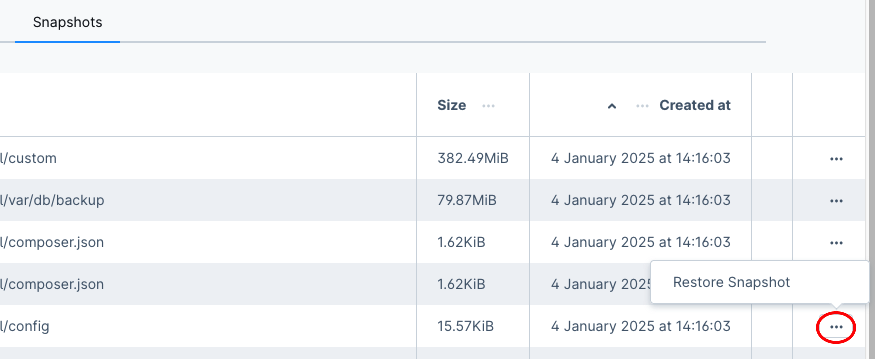 This action will start the restore process of the backup data as a background process.

But if the shop instance is not running anymore, you can use the native restic commands for to restore the backup data.
restic -r /srv/restic-repo restore 79766175 --target /tmp/restore-workdir
Checkout the description of the restic command for more information. https://restic.readthedocs.io/en/stable/050_restore.html#
Database cleanup
This command offers a more effective option to clean up database tables as the origin Shopware function and free up more memory.
Cart Cleanup
bin/console muckiware:table:cleanup cart
Example
- Database table overview of cart before cleanup

- Execute the cleanup command
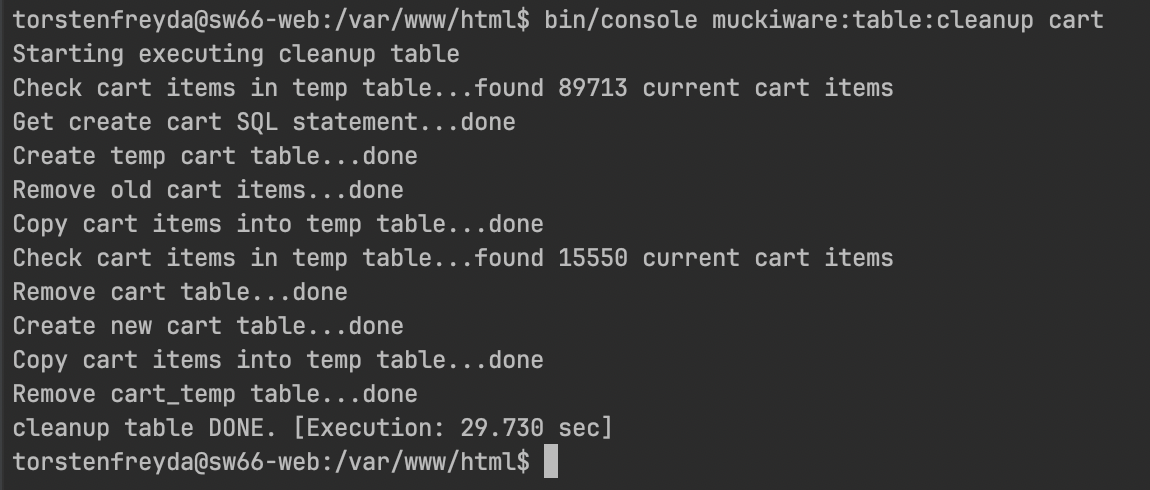
- After the cleanup, the table cart has become correspondingly much smaller size as before.
 The maximum number of days that should remain in the cart table can be set in the plugin configuration.


## Log_Entry Cleanup ```shell bin/console muckiware:table:cleanup log_entry ```
Events
The plugin dispatches events over the Symfony event dispatcher at fixed points of the backup lifecycle and the repository management. Other plugins can subscribe to them, for example to ship backup results to an external monitoring system, to start follow-up jobs after a successful backup, or to log repository maintenance.
Backup lifecycle events
All event classes live in the namespace MuckiFacilityPlugin\Events. Listen for the event name
shown in the first column.
| Event name | Event class | Fired when | Payload |
|---|---|---|---|
mucki_facility.backup.before_create |
BeforeBackupCreatedEvent |
A backup run starts, after the optional pre-backup command and before the database and file backups. | getBackupSettings(): BackupRepositorySettings |
mucki_facility.database_dump.before_create |
BeforeDatabaseDumpCreatedEvent |
Immediately before the database dump is created. Only for the backup types completeDatabaseSingleFile and completeDatabaseSeparateFiles, also for a standalone dump via bin/console muckiware:db:dump <backupType>. |
getBackupSettings(): BackupRepositorySettings |
mucki_facility.database_dump.after_create |
AfterDatabaseDumpCreatedEvent |
A database dump was created successfully, with the results of this dump. | getBackupSettings(): BackupRepositorySettingsgetResults(): array<ResultEntity> |
mucki_facility.backup.after_create |
AfterBackupCreatedEvent |
All database and file backups of the run are finished. Fires before the backup check, the snapshot import, the statistics collection and the optional post-backup command. | getBackupSettings(): BackupRepositorySettingsgetResults(): array<ResultEntity> (all results of the run) |
mucki_facility.backup.after_check |
AfterBackupCheckedEvent |
The backup check at the end of a backup run produced a check result, which is also persisted as check item. | getBackupRepository(): BackupRepositoryEntitygetCheckResult(): string |
AfterBackupCheckedEvent fires only as part of a complete backup run (administration, scheduler or
bin/console muckiware:backup:create <backupRepositoryId>), not for the standalone check via
bin/console muckiware:backup:check <backupRepositoryId>.
Repository management events
| Event name | Event class | Fired when | Payload |
|---|---|---|---|
mucki_facility.repository.after_cleanup |
AfterRepositoryCleanedUpEvent |
After a prune run on a repository (administration). | getBackupRepository(): BackupRepositoryEntitygetOutput(): string |
mucki_facility.snapshot.after_delete |
AfterSnapshotDeletedEvent |
After a single snapshot was removed from the repository. | getBackupRepositoryId(): stringgetSnapshotId(): stringgetOutput(): string |
mucki_facility.snapshots.after_delete |
AfterSnapshotsDeletedEvent |
After a batch of snapshots was removed, for example via bin/console muckiware:backup:snapshots <backupRepositoryId> --remove <snapshotIds> (snapshot ids as comma separated list). A batch removal also fires mucki_facility.snapshot.after_delete for every single snapshot. |
getBackupRepository(): BackupRepositoryEntitygetSnapshotIds(): array<int, string>getOutput(): string |
mucki_facility.snapshots.after_forget |
AfterSnapshotsForgottenEvent |
After snapshots were removed by the keep-policy, for example via bin/console muckiware:backup:forget <backupRepositoryId>. |
getBackupRepository(): BackupRepositoryEntitygetOutput(): string |
Payload classes
| Class | Description |
|---|---|
MuckiFacilityPlugin\Entity\BackupRepositorySettings |
Settings of the current run, for example getBackupRepositoryId(), getName(), getBackupType(), getRepositoryPath(), getBackupPaths(), getDbDumpPath(). |
MuckiFacilityPlugin\Core\Content\BackupRepository\BackupRepositoryEntity |
The persisted repository configuration. |
MuckiRestic\Entity\Result\ResultEntity |
One result of a restic execution, for example getOutput(), getCommandLine(), getStatus(), getDuration(). |
Snapshot entity events (DAL)
Shopware fires the standard DAL events for the snapshot entity muwa_backup_repository_snapshots.
The event names are available as constants in MuckiFacilityPlugin\Events\BackupRepositorySnapshotsEvents:
| Event name | Event class | Fired when |
|---|---|---|
muwa_backup_repository_snapshots.written |
EntityWrittenEvent |
Snapshot records are written, for example when a finished backup run imports the snapshots of the repository. |
muwa_backup_repository_snapshots.deleted |
EntityDeletedEvent |
Snapshot records are deleted in the shop database. |
muwa_backup_repository_snapshots.loaded |
EntityLoadedEvent |
Snapshot records are read over the DAL. |
Listener example
Subscriber class in your own plugin:
<?php declare(strict_types=1);

namespace MyOwnPlugin\Subscriber;

use MuckiFacilityPlugin\Events\AfterBackupCreatedEvent;
use Symfony\Component\EventDispatcher\EventSubscriberInterface;

class BackupEventSubscriber implements EventSubscriberInterface
{
    public static function getSubscribedEvents(): array
    {
        return [
            AfterBackupCreatedEvent::NAME => 'onAfterBackupCreated',
        ];
    }

    public function onAfterBackupCreated(AfterBackupCreatedEvent $event): void
    {
        $repositoryName = $event->getBackupSettings()->getName();

        foreach ($event->getResults() as $result) {
            $output = $result->getOutput();
            // send the result to an external system, write a log entry, ...
        }
    }
}
Registration in the services.xml of your plugin:
<service id="MyOwnPlugin\Subscriber\BackupEventSubscriber">
    <tag name="kernel.event_subscriber"/>
</service>
Alternatively, a single listener method on any service:
<service id="MyOwnPlugin\Notifier\BackupFinishedNotifier">
    <tag name="kernel.event_listener" event="mucki_facility.backup.after_create" method="onAfterBackupCreated"/>
</service>
Notes for listeners
- Backups started in the administration or by the scheduler run as message queue tasks. In that
case the events fire inside the
messenger:consumeworker process, not in the process that triggered the run. A backup by console command fires the events in the CLI process. - All events are dispatched synchronously, a slow listener delays the backup run.
- The events are notifications only: they cannot cancel or modify a run.
- Treat the payload objects as read-only; they are the instances of the current run.
Testing
phpstan
Install
Install phpstan, if required
cd custom/plugin/MuckiFacilityPlugin
composer install
Execute
cd custom/plugins/MuckiFacilityPlugin
composer run-script phpstan
Unit test
Execute first time
./vendor/bin/phpunit --configuration="custom/plugins/MuckiFacilityPlugin" --testsuite "migration"
Execute regular run
./vendor/bin/phpunit --configuration="custom/plugins/MuckiFacilityPlugin"