
bymayo / squash

Compress images and PDFs on upload or on demand, restore originals from backup, and see how much space you've saved.
Requires
- php: >=8.2
- craftcms/cms: ^5.6.0
Requires (Dev)
- craftcms/phpstan: dev-main
Suggests
None
Provides
None
Conflicts
None
Replaces
None
README

Squash for Craft CMS 5
We've all been there: not everyone optimises their images before uploading. A client drags in a 15MB photo straight off their phone (plus a few more for good measure) uploads it to the CMS and quietly fills up the storage.
Squash has your back. It compresses your assets for you, automatically on upload or whenever you like, shrinking JPEG, PNG, GIF, SVG and PDF files. Every original is safely stored as a backup so you can restore it in a click, and a built-in report shows off just how much you've saved.
Features
- Choose your engine: API (TinyPNG / ShortPixel / Kraken.io), native binaries (jpegoptim, pngquant, gifsicle, svgo, Ghostscript), or a zero-dependency Imagick/GD fallback
- Formats: JPEG, PNG, GIF, SVG and PDF
- Compress anywhere: automatically on upload, in bulk from the Assets index, or per-asset from its action menu
- Safe by default: backs up the original first, only writes back if it's actually smaller, and never re-compresses an already-optimised file
- One-click restore: roll any asset back to its original, which removes the backup and lets it be compressed again
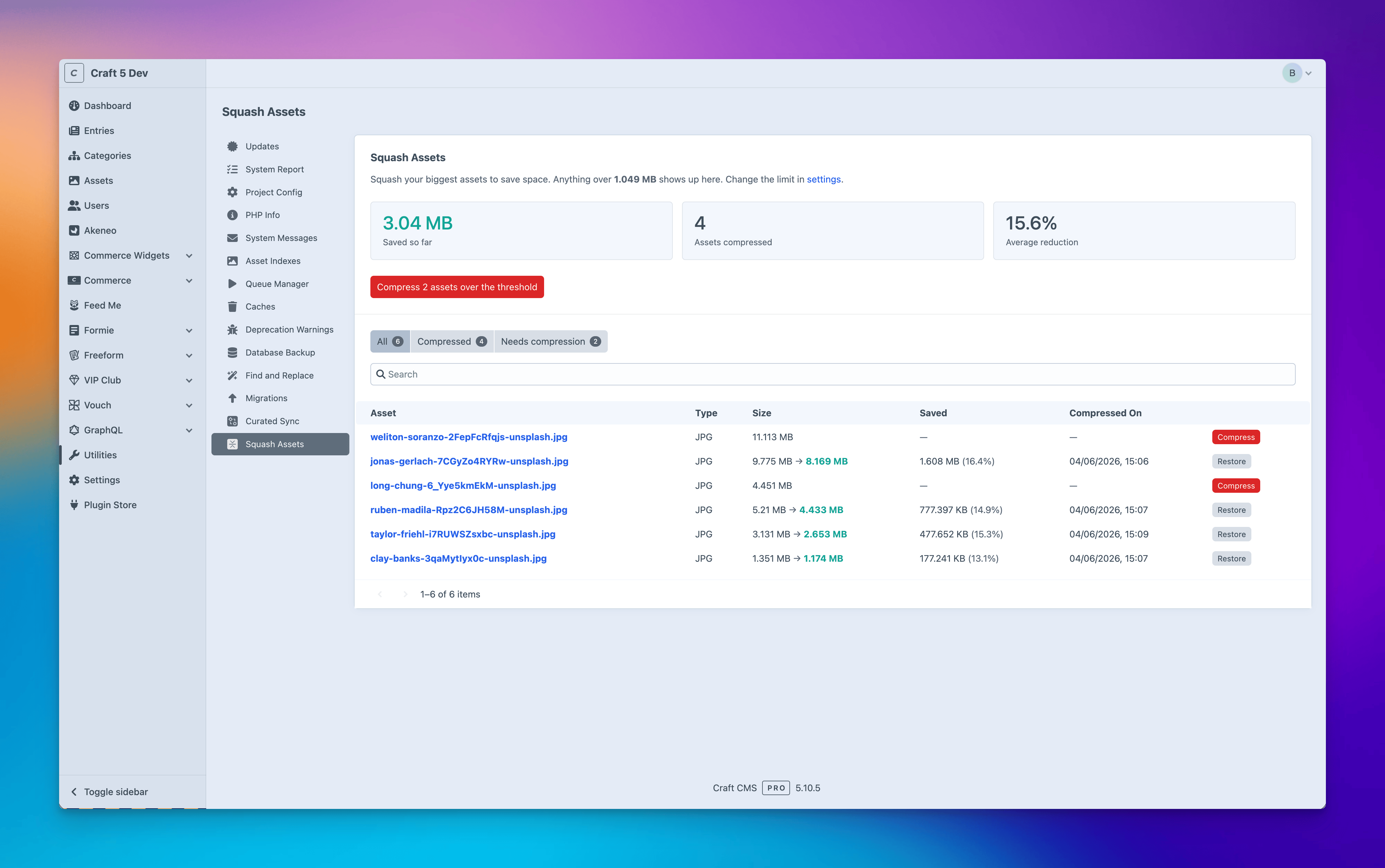
- Report utility: search your assets, see your savings stats, and compress in bulk
- Dashboard widget: a count of how many assets still need compressing, linking straight to the report
- At a glance: see what's been compressed right in the Assets index, and the savings, date and who did it on each asset
- Works anywhere: any Craft filesystem: local, Amazon S3, Servd Asset Storage, and more
- Permissions: control who can compress and who can restore, per user group
Install
- Install with Composer via
composer require bymayo/craft-squashfrom your project directory - Enable / Install the plugin in the Craft Control Panel under
Settings > Plugins
You can also install the plugin via the Plugin Store in the Craft Admin CP by searching for Squash.
Requirements
- Craft CMS 5.6+
- PHP 8.2+
Each compression engine also has its own requirements, depending on which you choose. See Drivers below.
Drivers
Pick the compression engine that suits your host:
- Binaries: shell access plus the command-line tool for each format you use:
jpegoptim(JPEG)pngquant(PNG)gifsicle(GIF)svgo(SVG, optional; falls back to a built-in minifier)gs/ Ghostscript (PDF)
- Imagick / GD: nothing extra; uses the
imagickorgdPHP extension that Craft already requires. - API: an API key for your chosen service:
The Drivers → Server support table in settings shows what's detected on your server.
Configuration
Open Settings → Plugins → Squash, or set any of these in a config file.
| Setting | Description | Default |
|---|---|---|
pluginName |
Display name used throughout the control panel | Squash |
activeDriver |
Image engine: imagick, binary or api |
imagick |
apiService |
API service when activeDriver is api: tinypng, shortpixel or kraken |
tinypng |
apiKey |
API key for the chosen service | '' |
apiSecret |
API secret (Kraken.io only) | '' |
enabledFormats |
Formats Squash may compress | ['jpg','png','gif','svg'] |
compressOnUpload |
Compress new uploads automatically | false |
autoUploadThreshold |
Minimum upload size in bytes to auto-compress (0 = no minimum) |
0 |
reportThreshold |
Size in bytes above which assets are flagged in the report | 2097152 |
keepBackups |
Back up the original before overwriting it | true |
backupFsHandle |
Filesystem to store backups in (empty = the asset's own) | '' |
backupFolder |
Folder backups are stored in | _squash-backups |
backupRetentionDays |
Auto-delete backups older than this many days (0 = keep forever) |
90 |
jpegQuality |
JPEG quality, 1–100 | 82 |
pngQuality |
pngquant min-max range |
65-80 |
gifOptimizationLevel |
gifsicle level, 1–3 | 3 |
pdfQuality |
Ghostscript preset: screen, ebook, printer or prepress |
ebook |
Prefer config files? Copy src/config.php to config/squash.php. Anything set there overrides the control-panel settings, and supports Craft's multi-environment config.
How to compress files
On upload
Turn on Compress on upload in settings. New uploads are queued for compression automatically. Set an Auto-compress threshold if you only want to touch files over a certain size.
Via Assets
In the Assets index, select one or more assets and choose Compress file from the actions menu. Or open a single asset and use Compress file in its ••• menu.
Via utility
Open Utilities → Squash Assets, switch to Needs compression, and either Compress an individual asset, tick several rows and use the cog Actions menu to Compress selected or Restore selected, or Compress all uncompressed assets in one go (this ignores the report threshold and queues every asset that still needs compressing).
Dashboard widget
Add the Squash - Needs Compression widget to your dashboard for an at-a-glance count of assets still over the threshold, with a link straight to the report's Needs compression view. The widget is only offered to users with access to the report utility.
Compressed vs already optimised
Every run finishes in one of two states:
- Compressed: the file got smaller, so the lighter version is saved (and, if backups are enabled, the original is kept so you can restore it). Marked with a green tick.
- Already optimised: Squash ran but couldn't make it any smaller, so the original is left as-is. Marked with a grey tick, and you can always retry.
Both count as "compressed", so the Compressed column and filter include either.
The Compressed column & filter
Squash adds a Compressed column and filter to the Assets index so you can see and target what's been done.
- Column: enable Compressed from the column settings (the gear at the end of the table header). A green tick means compressed, a grey tick means already optimised.
- Filter: open the Assets filter bar and add the Compressed condition to show only processed assets, or toggle it off to find everything that still needs doing.
Backups & restoring
With Keep backups on, the original is backed up before Squash overwrites it, under a configurable _squash-backups/ folder or a dedicated filesystem. Backups live on the filesystem, not in the control panel.
- Restore: Restore original file rolls the asset back, then deletes the backup so it can be compressed again.
- Retention: backups older than Keep backups for days are pruned during garbage collection (default 90;
0= keep forever). Runphp craft squash/backups/pruneto force it. - Cleanup: permanently deleting an asset also deletes its backup and records.
Permissions
Per user group under Settings → Users → (group) → Permissions:
- Compress assets (
squash-compressAssets) - Restore assets (
squash-restoreAssets)
Report-utility access is Craft's standard per-utility permission (under Utilities). Plugin settings are admin-only.
Why not ImageOptimize or Imager X?
They actually solve a different problem. ImageOptimize and Imager X optimise transforms (the resized variants you output in templates) and leave your original uploads untouched. Squash optimises the originals in your asset library, so you save on storage and backups, and keep file downloads light. It also handles files transforms don't, like PDFs and other downloadable files.
So they pair up nicely: let a transform plugin handle front-end delivery, and let Squash keep the library itself lean.
Support
If you have any issues (surely not!) then I'll aim to reply to these as soon as possible. If it's a site-breaking-oh-no-what-has-happened moment, then hit me up on the Craft CMS Discord - @bymayo.